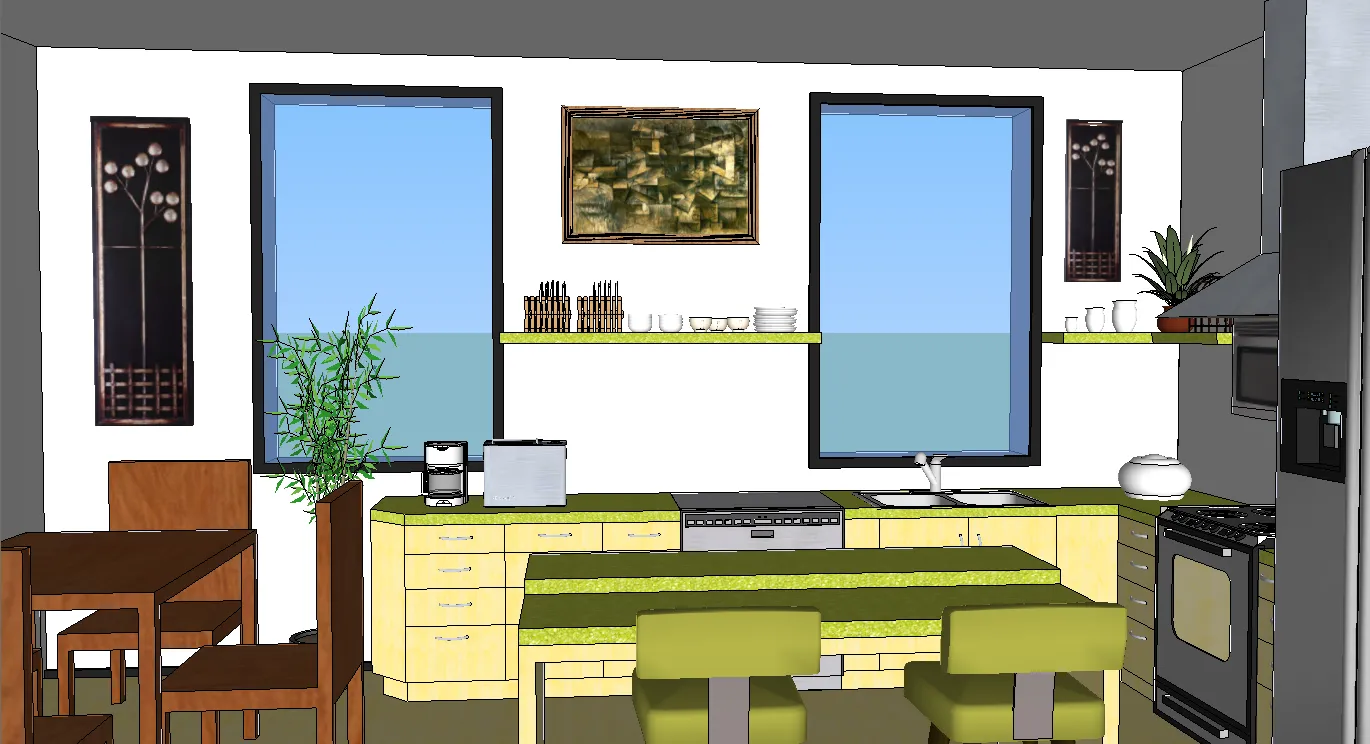
Designing your dream kitchen can be an exciting endeavor, and with the right tools, the process can be both fun and efficient. SketchUp, a user-friendly 3D modeling software, provides a fantastic platform for visualizing and planning your kitchen decor. This guide will walk you through the essential steps to create stunning kitchen designs using SketchUp, from the initial setup to the final rendering, empowering you to bring your vision to life. Whether you’re a seasoned designer or a complete beginner, this comprehensive tutorial will provide you with the knowledge and skills needed to design your own kitchen.
Getting Started with Kitchen Decor SketchUp
Before diving into the specifics of kitchen design, it’s important to understand the basics of SketchUp. This section will cover the initial steps necessary to get you started, ensuring you are well-prepared to create your kitchen designs. From installing the software to navigating the user interface, we will cover everything you need to start using SketchUp effectively for your kitchen decor projects. These initial steps are crucial for laying a solid foundation for your design process, allowing you to work efficiently and create accurate and visually appealing kitchen models.
Downloading and Installing SketchUp
The first step is to download and install SketchUp. You can find the software on the official SketchUp website. Choose the version that best suits your needs; there are options for both free and paid versions. The free version is ideal for beginners, offering a robust set of features for basic design projects. Once you’ve downloaded the installer, follow the on-screen instructions to complete the installation process. Ensure your computer meets the minimum system requirements for SketchUp to ensure smooth performance and avoid any technical difficulties. After installation, you can launch SketchUp and get ready to start designing.
Navigating the SketchUp Interface

Familiarizing yourself with the SketchUp interface is crucial for an efficient design workflow. The interface is designed to be intuitive, but understanding the location and function of key tools will significantly improve your productivity. The main toolbar contains tools for drawing, modifying, and measuring, while the larger area is the drawing space. Practice using the orbit, pan, and zoom tools to navigate around your 3D model. The menu bar at the top offers access to various features and settings. Experiment with these features, and soon you’ll be navigating the interface with ease, making the design process smooth and enjoyable. (kitchen-decor-sketchup-interface.webp)
Essential Tools for Kitchen Design
Certain tools are essential for kitchen design in SketchUp. The ‘Line’ tool allows you to draw straight lines, which are the foundation of your kitchen layout. The ‘Rectangle’ tool helps you create flat surfaces, like walls and floors. The ‘Push/Pull’ tool is fundamental for adding depth and volume to your design. The ‘Move’ tool enables you to reposition objects, while the ‘Offset’ tool is perfect for creating outlines, such as the edges of walls and cabinets. The ‘Measure’ tool helps you take precise measurements, critical for accuracy. Mastering these essential tools will provide you with the basic capabilities required to design your kitchen effectively.
Creating the Kitchen Layout
Once you’re familiar with the interface and essential tools, it’s time to begin the actual design process. This section will guide you through creating the basic structure of your kitchen, including room dimensions, walls, doors, and windows, laying the groundwork for your design. Proper planning and accurate measurements are key to ensuring that your virtual kitchen reflects your real-world space. Focus on establishing the fundamental framework upon which you will build the details of your kitchen design. This step is the foundation of your kitchen design, so take your time and ensure accuracy.
Drawing the Room Dimensions

Start by establishing the dimensions of your kitchen space. Use the ‘Line’ tool to draw the perimeter of the room. Accurately measure the length and width of your kitchen, and input those measurements into SketchUp. Ensure that all lines connect to form a closed shape, the base of your kitchen model. Precise measurements are critical here, so double-check your inputs to ensure the virtual space matches your actual kitchen. This is the initial step in creating a true-to-scale representation of your kitchen, which will significantly aid in the design process. (kitchen-decor-sketchup-layout.webp)
Adding Walls, Doors, and Windows
Once the room dimensions are set, use the ‘Push/Pull’ tool to extrude the flat surface into walls. Determine the height of your walls and enter this value. Use the ‘Rectangle’ and ‘Line’ tools to create openings for doors and windows. After creating the openings, you can delete the unwanted faces. This step adds volume to your kitchen model and helps you visualize the space in 3D. Accurate placement and sizing of doors and windows are essential to ensure a realistic representation of your kitchen. Taking your time here will ensure you can accurately move on to the next steps in your design.
Designing Kitchen Cabinets
Kitchen cabinets are a key component of the design, providing both functionality and aesthetic appeal. Begin by determining the type and placement of your cabinets. Use the ‘Rectangle’ and ‘Push/Pull’ tools to create the basic cabinet shapes. Consider different cabinet styles such as base cabinets, wall cabinets, and tall cabinets. Use the ‘Offset’ tool to create cabinet doors and drawers. Precise dimensions are vital here as well, so ensure that the cabinet sizes align with your preferred design. Properly designed cabinets will greatly enhance the overall look and functionality of your kitchen. (kitchen-decor-sketchup-cabinets.webp)
Adding 3D Models and Components

Adding 3D models and components is a great way to enhance the realism and detail of your kitchen design. SketchUp offers an extensive library of pre-designed components and the ability to import models from other sources. This will add the finishing touches to your design, allowing you to visualize your kitchen with appliances, countertops, and various accessories. By incorporating these pre-designed elements, you can greatly reduce the design time while adding realistic elements. Remember that the right components can transform a basic design into a beautiful and functional space.
Finding and Importing Kitchen Components
SketchUp’s 3D Warehouse is an invaluable resource for finding pre-made components. Search for kitchen appliances, countertops, sinks, and other accessories. Many components are available for free, while others may come with a fee. You can also import models from other sources or create your own custom components. When importing, ensure the components are scaled correctly to match your kitchen dimensions. This helps maintain the accuracy of your design and the overall visual appeal. Selecting the right components can greatly enrich the details of your kitchen model. (kitchen-decor-sketchup-components.webp)
Customizing Component Sizes and Materials
Once you’ve imported components, you may need to adjust their sizes to fit your design. Use the ‘Scale’ tool to modify the dimensions of a component. You can also change the materials and textures applied to these components to match your desired aesthetic. By customizing the components, you can create a unique and personalized kitchen design. This level of detail allows you to accurately represent your design vision and make informed decisions about your decor selections.
Designing and Adding Countertops and Appliances

Designing and adding countertops and appliances is one of the last steps in completing your kitchen design. Use the ‘Rectangle’ and ‘Push/Pull’ tools to create countertops that fit perfectly with your cabinets. Make sure to accurately measure the required dimensions. Then, position appliances such as the refrigerator, oven, and dishwasher in their designated areas. The placement of these elements affects both the layout and functionality of your kitchen. By accurately adding these essential items, you bring your kitchen design closer to reality.
Adding Textures and Materials
Adding textures and materials is essential to make your kitchen design visually appealing and realistic. SketchUp provides a wide range of materials that you can apply to different surfaces, such as walls, cabinets, and flooring. This section will guide you through applying these materials, customizing them, and creating a design that reflects your taste. The appropriate materials can turn a basic model into a fully realized design, helping you envision your kitchen and its overall appearance.
Applying Materials to Walls, Cabinets, and Floors
SketchUp’s ‘Materials’ panel allows you to select and apply various textures. Choose textures for your walls (paint, wallpaper), cabinets (wood, laminate), and floors (tile, hardwood). Click on the ‘Paint Bucket’ tool and then select the material you want to apply, then click on the surface you want to apply it to. Experiment with different textures to see how they look in your design. The strategic use of materials brings your design to life by adding color, depth, and a sense of realism. Remember that the choice of materials will greatly influence the overall aesthetic of your kitchen.
Adjusting Textures for Realism

After applying materials, you can adjust them to enhance realism. You can modify the size and orientation of the texture. Double-click on the material in the ‘Materials’ panel to adjust its properties. Use the ‘Scale’ tool to change the size of the texture. Rotate the texture to change its orientation. By adjusting these settings, you can achieve a more accurate and detailed look. These adjustments are especially useful for creating seamless textures, making your design look more realistic. (kitchen-decor-sketchup-materials.webp)
Lighting and Rendering
The final step in your kitchen design involves setting up the lighting and rendering your model. Proper lighting can transform the look and feel of your kitchen, highlighting the different design elements. Rendering allows you to create high-quality images, perfect for showcasing your design. These features can greatly affect the outcome of your design. Rendering creates impressive images that provide a clear view of the space, which in turn, helps you make better design decisions.
Setting Up Lighting for Your Kitchen
SketchUp provides a range of lighting options to illuminate your kitchen design. You can add sunlight and shadows to simulate natural light. There are also different types of artificial lighting to choose from, such as point lights, spotlights, and area lights. Experiment with lighting positions to understand how light affects the appearance of your kitchen. Strategic lighting adds depth and ambiance to the scene. When setting up lighting, think about both the functionality and the aesthetics of your design, considering how lighting can enhance the overall atmosphere. (kitchen-decor-sketchup-lighting.webp)
Rendering Your Kitchen Design

Rendering is the process of generating a high-quality image from your 3D model. There are several rendering extensions available for SketchUp. These extensions enable you to create realistic images that showcase the details of your design. Set up your scene, choose the rendering settings, and then click the render button. The resulting image can be used to evaluate your design. High-quality renderings give you a realistic view of how your kitchen will look once constructed. (kitchen-decor-sketchup-rendering.webp)
Saving and Sharing Your Kitchen Design
Once you have completed your kitchen design, it is crucial to save your work properly and be ready to share it with others. This involves saving your SketchUp file and exporting your design in various formats for sharing or presentation. Proper file management and presentation of your final designs are key to successfully communicating your design vision. This step will prepare your design for sharing or future revisions.
Saving your work in SketchUp is straightforward. Go to ‘File’ > ‘Save’ and choose a location to save your .skp file. Make sure to save your design frequently to avoid losing your progress. Consider creating multiple versions of your design at different stages. In addition, you can export your design in formats such as images (JPEG, PNG) or even 3D models (DWG, DXF) to share with others. You can present the images or 3D models of your kitchen to clients or other designers, or use them for your own future reference. (kitchen-decor-sketchup-final-design.webp)
In conclusion, SketchUp is an incredibly valuable tool for kitchen design. By following the steps outlined in this guide, you can create detailed, realistic kitchen models. Remember to start with the basics, master the essential tools, and gradually add details. As you become more proficient, you can experiment with different features and customize the models to match your personal style. With patience and practice, you can design and visualize your perfect kitchen using SketchUp.